When it comes to connecting displays and multimedia gear, almost everything comes down to two video standards: DisplayPort (DP) and HDMI. Both move high-quality picture and sound, but they were designed with different priorities — and the right choice depends entirely on what you're plugging together. This guide breaks down what each one does best, how they compare side by side, and how to cover every scenario when a single setup needs both.
Table of Contents
• What Is DisplayPort?
• What Is HDMI?
• DisplayPort vs HDMI: 7 Key Differences
• How to Decide: DisplayPort or HDMI?
• What If You Need Both Interfaces?
• Conclusion
• FAQs About DisplayPort and HDMI
DisplayPort was created by the Video Electronics Standards Association (VESA) and first shipped in 2006 as a digital connection built to move high-speed video and audio. Where it pulls ahead is at the top end — very high resolutions, very high refresh rates, and driving several screens from a single port — which is why it has become a staple in professional creative work and PC gaming.
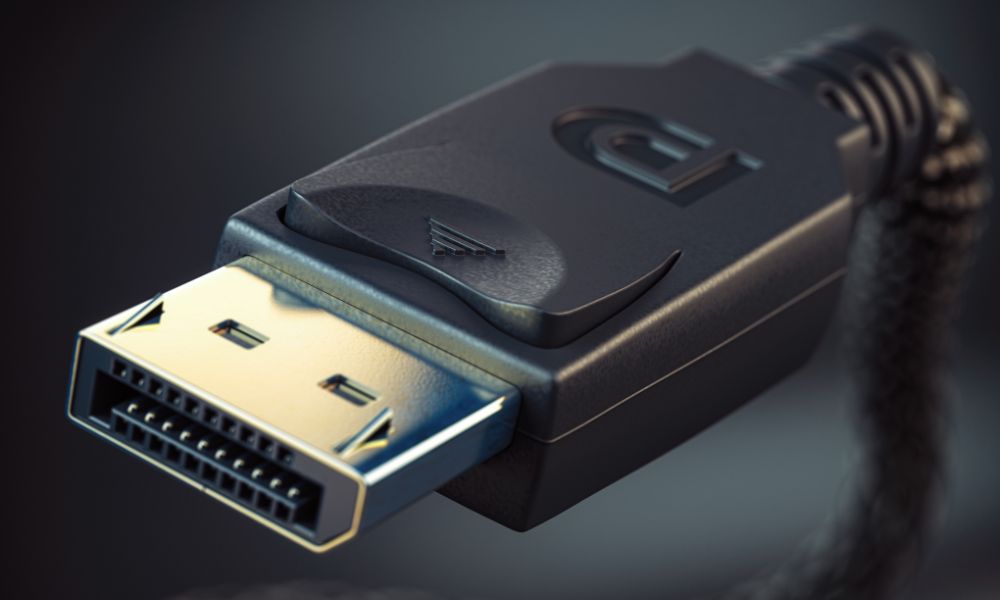
What it does well:
• Bandwidth headroom: from 17.28 Gbps on DP 1.2 up to 80 Gbps on DP 2.1, enough for resolutions reaching 16K and 4K refresh rates as high as 480Hz (using Display Stream Compression).
• Multi-Stream Transport (MST): one port can fan out to several independent displays — for example two 4K@60Hz panels or four 1080p@144Hz panels.
• DisplayPort Alt Mode: lets a USB-C port carry a native DisplayPort signal, so a single cable can move video, data and power together. This is the backbone of modern USB-C docking stations.
• Built for precision: handles color-critical pipelines (12-bit depth, HDR10) and industrial applications.
Connector types:
• Full-size DisplayPort: the rectangular port found on most desktops and monitors.
• Mini DisplayPort: the compact variant on some older laptops, which needs an adapter to reach standard DisplayPort gear.
HDMI (High-Definition Multimedia Interface) arrived in 2002 and has since become the default video connector across consumer electronics. Its appeal is simplicity: a single cable carries uncompressed video plus multi-channel audio, which suits living-room setups and everyday plug-and-play use.
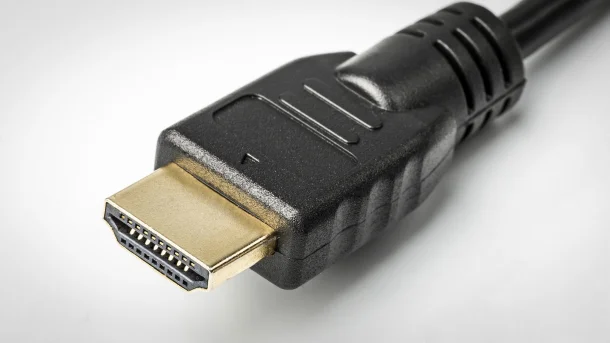
What it does well:
• Compatibility everywhere: TVs, gaming consoles (PS5, Xbox), laptops and projectors all speak HDMI, usually with zero setup.
• Audio Return Channel (ARC/eARC): a TV can send sound back down to a soundbar or receiver over the same cable; eARC in HDMI 2.1 carries lossless formats such as Dolby Atmos.
• Gaming features: HDMI 2.1 adds Variable Refresh Rate (VRR) and Auto Low Latency Mode (ALLM) for tear-free, responsive play.
• Bandwidth that scales: from 10.2 Gbps on HDMI 1.4 to 48 Gbps on HDMI 2.1, covering 8K@60Hz and 4K@240Hz (with compression).
Connector types:
• Type A (standard HDMI): the familiar port on TVs and consoles.
• Type C (Mini HDMI) and Type D (Micro HDMI): for cameras, tablets and other compact devices.
DisplayPort vs HDMI: 7 Key Differences
| Feature |
DisplayPort 2.1 |
HDMI 2.1 |
| Peak bandwidth |
80 Gbps |
48 Gbps |
| Top resolution |
16K@60Hz, 8K@120Hz |
8K@60Hz, 4K@240Hz |
| Multi-display |
Native MST, up to 4 screens |
Limited — needs specific hardware |
| Audio |
32-channel lossless |
eARC for Dolby Atmos / DTS:X |
| Gaming |
Very high refresh (up to 480Hz) |
VRR / ALLM for consoles |
| Portability |
DP Alt Mode over USB-C |
Micro HDMI for mobile devices |
| Best suited to |
Gaming, pro design, VR |
Home theater, consoles, casual use |
How to Decide: DisplayPort or HDMI?
Match the standard to what you actually do:
Reach for DisplayPort when:
• You game at high refresh rates. 4K@144Hz or 2K@360Hz for competitive play leans on DP's larger bandwidth.
• You run multiple monitors. A 2+ display workflow (say, three 4K panels for video editing) is exactly what native MST was built for.
• You use a VR/AR headset. High resolution paired with low latency is best served by DisplayPort.
• You connect over USB-C. A laptop with USB-C (via DP Alt Mode) keeps cabling simple to external displays and docking stations.
Reach for HDMI when:
• You're building a home theater. TVs, soundbars and Blu-ray players pair naturally over HDMI, with eARC handling surround sound.
• You're on a console. PS5 and Xbox Series X depend on HDMI 2.1 for 4K@120Hz plus VRR/ALLM.
• Your needs are everyday. Basic 1080p@60Hz monitors, or sending a laptop's screen to a TV for a presentation, are squarely HDMI territory.
What If You Need Both Interfaces?
Plenty of modern hardware — high-end graphics cards and premium monitors — ships with both DisplayPort and HDMI so you never have to pick just one. The cleanest way to pull both outputs from a single laptop, though, is a USB-C docking station that splits one USB-C (DP Alt Mode) connection into separate DisplayPort and HDMI outputs.
Ways to cover both:
1. Dual-interface graphics cards. Modern NVIDIA and AMD GPUs typically carry several DisplayPort outputs plus one or two HDMI ports — ideal for a multi-display desk that drives high-refresh monitors over DP and a TV over HDMI.
2. A multi-port USB-C docking station. For a dual-display desk that mixes a high-refresh DisplayPort monitor with an HDMI TV or second panel, the PURPLELEC DS015 USB-C docking station delivers one HDMI and one DisplayPort output, each up to 4K@60Hz, over a single cable — with 100W PD pass-through to keep the laptop charged. If you're still working out how a docking station fits your hardware, our guide on how a USB-C docking station works and how to choose one covers compatibility, display limits and port planning.
3. Dual-input monitors. Many professional monitors include both DisplayPort and HDMI inputs, letting you switch cleanly between a gaming PC on DP and a console on HDMI.
DisplayPort and HDMI play distinct — but overlapping — roles:
• DisplayPort is the choice for high-performance work: extreme refresh-rate gaming, multi-display professional workflows and USB-C portability.
• HDMI rules consumer electronics, with near-universal compatibility for home theaters, consoles and casual setups.
Lean toward DisplayPort for technical precision and future-proofing (8K and beyond), and toward HDMI for simplicity and the widest device support. For many people the smartest move is hardware that offers both — a dual-output USB-C docking station being the easiest way to get there from a single laptop port.
FAQs About DisplayPort and HDMI
Q1: Are DisplayPort and HDMI cables interchangeable?
A1: No. They use different connectors and protocols. An adapter (such as DP-to-HDMI) bridges the two, but advanced features like MST or eARC may not carry over.
Q2: Can HDMI 2.1 match DisplayPort 2.1 for gaming?
A2: HDMI 2.1 handles 4K@240Hz with VRR, which is excellent for consoles. DisplayPort 2.1 goes further still — up to 4K@480Hz with better multi-display scaling for PC gaming.
Q3: Do I need a specific cable for HDMI 2.1 or DisplayPort 2.1?
A3: Yes. Look for an "Ultra High Speed HDMI" cable (48 Gbps) for HDMI 2.1, and a "DP 2.1 certified" cable for DisplayPort, so you actually get the full bandwidth.
Q4: Can I use DisplayPort Alt Mode on any USB-C port?
A4: Only on USB-C ports that support DisplayPort Alt Mode — usually marked with a small display icon. Check your device's specs first.
Q5: Which is better for HDR content: DisplayPort or HDMI?
A5: Both support HDR10, but DisplayPort 2.1 adds dynamic HDR and higher color depth (12-bit), which makes it the stronger pick for professional HDR workflows.









